ip
GAB chatbot User Guide
Gab is a Command Line Interface (CLI) desktop app for managing your tasks (todo, deadline and event).
Quick start
- Ensure you have Java
11or above installed in your computer. - Download the latest
Gab.javafrom here. - Copy the file to the folder you want to use as the home folder for your chatbot.
- Open a command terminal,
cdinto the folder you put the jar file in, and usejava -jar ip.jarcommand to run the application. The terminal should display something similar to the image below.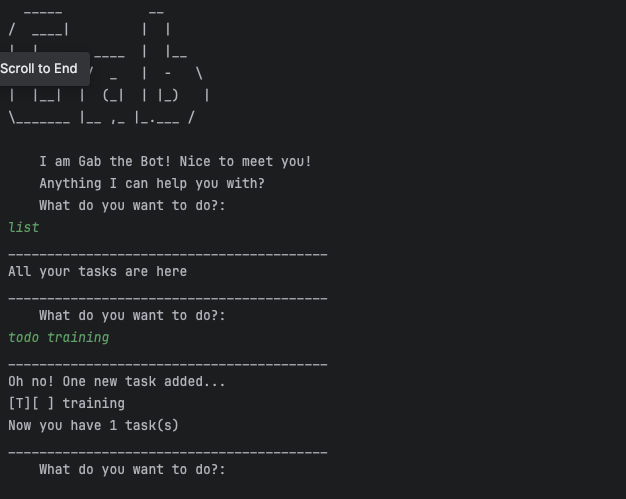
- Type the commands (
list,todo training) and pressENTERto execute it. - Refer to the Features below for implementations of each command.
Features
[!WARNING] Any commands executed MUST STRICTLY follow the format specified.
Any deviation in the format will result in an error.
Adding a new todo task: todo
Create a todo task with just the task name.
Format: todo TASK_NAME
Examples:
- todo training
- todo create jar file
Expected outcome:
_________________________________________
Oh no! One new task added...
[T][ ] training
Now you have 1 task(s)
_________________________________________
Adding a new deadline task: deadline
Create a deadline task with a name and deadline.
Format: deadline TASK_NAME /by DEADLINE
Examples:
- deadline training /by tmr
- deadline create jar file /by week 7
Expected outcome:
_________________________________________
Ok! Watch the deadline!
[D][ ] training (by: tmr)
Now you have 2 task(s)
_________________________________________
Adding a new event task: event
Create a deadline task with a name, start and end date.
Format: event TASK_NAME /from START_DATE /to END_DATE
Examples:
- event training /from saturday 9am /to 11am
- event attend class /from now /to tmr
Expected outcome:
_________________________________________
Weehoo! Enjoy the event!
[E][ ] training (from: saturday 9am to: 11am)
Now you have 3 task(s)
_________________________________________
Listing all tasks: list
List all the task in a numbered list from the task list.
Format: list
Examples:
- list
Expected outcome:
_________________________________________
All your tasks are here
1.[D][ ] training
2.[D][ ] training (by: tmr)
3.[E][ ] training (from: saturday 9am to: 11am)
_________________________________________
Mark task as done: mark
Mark task with a cross to show that it is done
Format: mark TASK_INDEX
- Mark task of the TASK_INDEX as done with a cross
- TASK_INDEX must be positive integer 1, 2, 3, …
Examples:
- mark 1
Expected outcome:
_________________________________________
One done!
[T][X] training
_________________________________________
Mark task as not done: unmark
Un-mark task to show that it is not done
Format: unmark TASK_INDEX
- Un-mark task of the TASK_INDEX
- TASK_INDEX must be positive integer 1, 2, 3, …
Examples:
- unmark 1
Expected outcome:
_________________________________________
Oh no!
[T][ ] training
_________________________________________
Find task that contains keyword: find
Un-mark task to show that it is not done
Format: find KEYWORD
- KEYWORD is the word you want to find
- KEYWORD is not case sensitive
Examples:
- find floorball
- find training
Expected outcome:
_________________________________________
Yay! No task found...
_________________________________________
_________________________________________
1. [T][ ] training
2. [D][ ] training (by: tmr)
3. [E][ ] training (from: saturday 9am to: 11am)
_________________________________________
Delete task: delete
Delete task from task list
Format: delete TASK_INDEX
- Delete task of the TASK_INDEX
- TASK_INDEX must be positive integer 1, 2, 3, …
Examples:
- delete 1
Expected outcome:
_________________________________________
Ok task deleted!
	[T][ ] training
Now you have 2 task(s)
_________________________________________
Exit program: bye
Exits the program
Format: bye
Examples:
- bye
Expected outcome:
_________________________________________
All the best!
_________________________________________
FAQ
Q: How do I transfer my data to another Computer?
A: Install the app in the other computer and overwrite the empty data file it creates with the file that contains the data.
Command summary
| Command | Format | Examples |
|---|---|---|
| todo | todo TASK_NAME | todo training, todo cs2113t ip |
| deadline | deadline TASK_NAME /by DEADLINE | deadline ip /by week 7 |
| event | event EVENT_NAME /from START_DATE /to END_DATE | event competition /from 21st May /to 22nd May |
| list | list | list |
| mark | mark TASK_INDEX | mark 1, mark 5 |
| unmark | unmark TASK_INDEX | unmark 1, unmark 5 |
| find | find KEYWORD | find floorball, find training |
| delete | delete TASK_INDEX | delete 1, delete 2 |
| bye | bye | bye |